The Short Answer
Permit join is not a setting you turn on and leave on. It is a temporary network state: you ask the Zigbee2MQTT bridge to allow new devices, the bridge passes that request to the coordinator and its routers, and the window closes on its own. That gives you four places for the symptom to start: the frontend control, the MQTT round trip, the coordinator or a router, and the device itself.
So before you touch configuration.yaml, answer one question from the log: did the bridge accept the request or reject it? The official pairing guide says the frontend opens the network for 254 seconds (Allowing devices to join), and the MQTT reference shows the bridge always answers a request on the matching response topic with a status of ok or error (MQTT topics and messages). Those two facts turn a vague "Permit join not working" into a check you can pass or fail.
One version note: the wording and placement of frontend controls have changed between releases. Treat the log, the request topic, and the response topic as the stable parts, and use the UI as a convenience rather than as evidence.
How Permit Join Is Supposed to Work
The documented flow is short:
- The frontend opens the network for 254 seconds, and the same control can close it early.
- Over MQTT, publish to
zigbee2mqtt/bridge/request/permit_join. The documented payloads are{"time": 254}to open the window for its maximum duration,{"time": 0}to close it, and{"time": 60, "device": "bulb"}or{"time": 60, "device": "coordinator"}to limit the window to one specific device. - The bridge answers on
zigbee2mqtt/bridge/response/permit_join. That payload contains at leaststatusanddata; whenstatusiserror, it also carries anerrordescription. Adding atransactionvalue to the request copies that value into the response, which keeps request and response easy to match. zigbee2mqtt/bridge/infopublishespermit_joinandpermit_join_end, so you can see whether the window is open and when it expires.
That is the whole contract. If your symptom is "I click the button and no device pairs," the next step is not a different button. It is working out which of those four layers broke.
Layer 1: The Frontend Control Never Sends the Request
Symptoms here: the button appears to do nothing, the panel looks stale, or nothing at all appears in the log when you click.
What to check:
- Watch
zigbee2mqtt/bridge/loggingor the Zigbee2MQTT log while you click. An accepted request produces a line likeZigbee: allowing new devices to join. - Confirm the bridge itself is online.
zigbee2mqtt/bridge/stateis retained and reports{"state":"online"}while the bridge is running. - Send the request yourself instead of through the UI. Publish
{"time": 254}tozigbee2mqtt/bridge/request/permit_joinwith any MQTT client, then watch the response topic.
If the manual request succeeds and the button did not, the bridge can accept an MQTT request; investigate the frontend path. That result does not prove a device can join through the radio network. If the manual request also produces no response or log line, move to the next layer.
Layer 2: The Request Fails on the MQTT Round Trip
Symptoms here: the request reaches the bridge and comes back with status: error, or the response never arrives.
Start with the error text. The response is specific, and the exact string decides what to do next:
Response | What it points to |
|---|---|
| The bridge accepted the request; the problem is downstream |
| The request itself, including its JSON shape |
| The radio conversation with the coordinator or a router |
No response at all | Broker reachability, topic spelling, or the configured base topic |
Two details catch people out. First, the base topic is configurable; if you changed base_topic, every topic in this article shifts with it. Second, requests are matched to responses by topic, so a transaction value makes a busy log readable.
While you are in the log, check for the two error codes the FAQ calls out directly: MAC_CHANNEL_ACCESS_FAILURE (the wireless spectrum is too occupied) and NWK_TABLE_FULL (the neighbor table is full, reported to share the same root cause). Both point at interference rather than at your configuration, which is why the official FAQ suggests an USB extension cable for the coordinator and disconnecting other USB devices from a Raspberry Pi (FAQ).
This is the layer where reading first saves time. If the response says the request failed on the radio, editing YAML will not change the outcome.
Layer 3: The Coordinator or a Router Cannot Permit Join
Symptoms here: the request is accepted, or fails with a radio error, and no device ever appears in the log.
The pairing guide describes an easily missed control: the arrow beside Permit join (All) lets you permit joining through the coordinator or through one specific router instead of the whole mesh. That distinction is a diagnostic tool, not just a preference.
- Permit joining through the coordinator only. If that request succeeds and "All" fails, a router may be involved, but confirm with logs before changing the mesh.
- If you use a Texas Instruments CC2652 or CC1352 adapter, send
zigbee2mqtt/bridge/request/coordinator_checkand look for missing routers. The MQTT reference is explicit about the consequence: pairing may fail for any device that tries to join through a missing router, and devices can drop off the network when they try to rejoin through one. The documented fix is to re-pair the missing routers. - Remove the easy sources of interference. Besides the USB extension cable, the FAQ suggests powering down other Zigbee networks and hubs while you pair, and pairing close to the coordinator to take distance out of the equation.
- Try joining through a light or bulb router instead of the coordinator. The FAQ lists the bulb-router option under interview failures, but the reachability logic is the same for the join itself.
Layer 4: The Device Never Enters Pairing Mode
Symptoms here: the window is open, the log shows the bridge waiting, and the device still never appears.
At this point the device's pairing state or its route through the network deserves attention:
- Check the model's page in the supported devices list. The pairing guide says the device page is the first place to look for pairing instructions, and that if none are available the device can probably be paired by factory resetting it.
- Reset according to the model's instructions when moving it from another network. Do not assume the same button sequence works on every device.
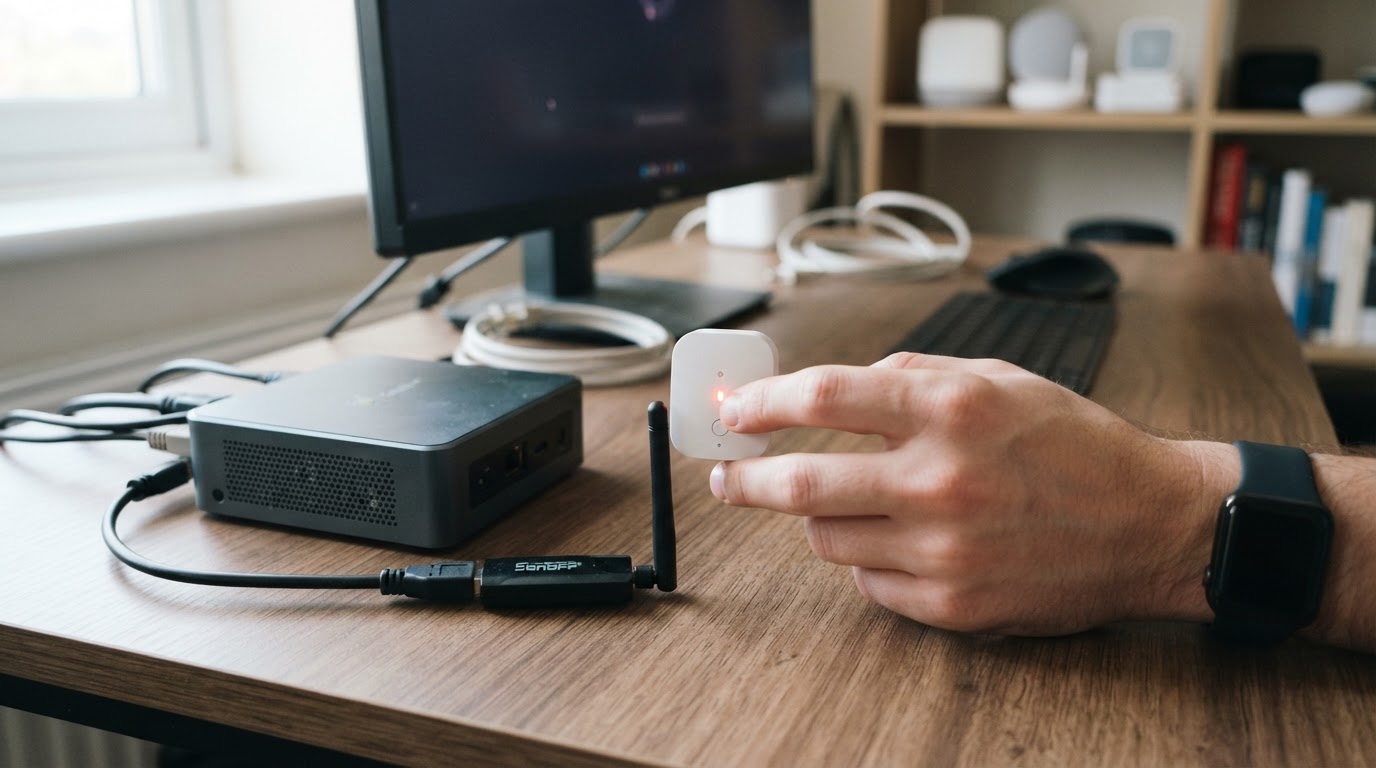
- Replace the battery, and keep the device awake. For a sleeping battery device, the FAQ suggests pressing its button every few seconds while you pair.
- Expect to try more than once. The FAQ lists re-pairing two or three times as a normal step, not a last resort.
- Move the device closer to the coordinator while it joins.
Do not force an unrelated device into pairing mode as a workaround, and do not delete network.db to "start clean." Neither is a documented fix for a join window that will not open, and both can cost you a working network.
A Quick Decision Table
What you see | Failing layer | First check |
|---|---|---|
Clicking Permit join logs nothing | Frontend to broker | Send the request manually and watch the response |
Response is | Request format | Compare your payload with the documented shapes |
Response mentions a radio error | Coordinator or router | Permit joining via the coordinator only |
Window opens, no device appears | Device or router reachability | Reset the device and pair close to a router |
Window closes sooner than expected | A second request or an expired timer | Read |
That last row deserves a note: the documented maximum is 254 seconds, and a request with {"time": 0} closes the window. If it vanishes faster than that, look for anything else publishing to the request topic. Automations and dashboard buttons often send a second permit-join command without anyone noticing.
When to Stop and Escalate
If you have worked through all four layers, the remaining step is evidence, not guessing:
- Enable debug logging and repeat the attempt once.
- Capture the request, the response, and the log around the moment the window opens or fails.
- Open an issue with that log attached. The FAQ treats a reproducible pairing failure with debug logging as a bug report rather than a configuration problem.
You can also sidestep the ambiguity of "not working" entirely. If a device joins but discovery does not finish, use the site's interview-failure checklist. If the bridge cannot reach the broker at all, start with the MQTT connection guide, because a permit-join request cannot work until the bridge is online.
The pattern behind every fix above is the same: find the layer that failed, fix that layer, and leave the rest of the configuration alone.