Home Assistant records a trace every time an automation runs, and Download trace exports that run as a file rather than a picture of the graph. The Home Assistant documentation for testing automations covers the download and a separate section on preparing a trace for sharing; the replacement rules below come from that page. Choosing the right run and exporting it is the easy part; most of the work sits in what you remove afterwards.
Open the run that shows the failure
Trace selection happens on the automation itself, so start at Settings > Automations & scenes and open the automation. Select Traces in the top bar of the editor, or open Menu and then Traces on a narrow screen. The overflow menu next to the automation in the list leads to the same view, and the latest run appears first. If you arrived from Activity, the entry for that automation offers View trace, which opens the trace of the run that caused it.
Runs pile up in order, so use Select trace to pick an earlier one, or step through them with Older trace and Newer trace. Each entry carries the start time and how the run ended, which is often enough to recognise the one you were told about: a run that stopped because a condition failed reads differently from a run that finished its actions. If the automation fires again while you have the trace open, select Menu and then Refresh to pull in the new runs.
When two runs look similar, use the graph and the tabs before downloading. The graph shows which path the automation took and where it stopped, Step details shows the result of the selected step with its configuration and changed variables, and Trace timeline shows the running order. A trace from a neighbouring run sends the person helping you down the wrong path, which costs more time than the extra minute spent choosing.
The download contains the whole run
With the trace open, select Menu and then Download trace. The browser saves the trace and its related activity as a JSON file in your downloads folder. The file is not limited to the step you happen to be viewing: it carries the automation configuration as it ran, the changed variables, and the related activity the run set off.
That completeness is why the file helps and why it needs editing. The documentation lists what a trace can hold:
- the configuration of the automation, including the real values from your
secrets.yamlfile, such as passwords, API keys or webhook IDs - the states and attributes of your entities, such as the location of a person or a phone
- the data that started the automation, such as the content of a webhook request
- the names of people, devices and areas in your home
A screenshot is not a safe way around that. Whatever is on screen gets captured, so an image of the graph can show entity names, states, a webhook ID in the step configuration or the text of a notification, while leaving the reader without the structure the JSON provides. Both the file and any screenshot need the same review before they leave your machine.
Find the private values in the whole file
Save a copy before you edit anything, for example as automation-trace-redacted.json, and leave the download untouched. Then open the copy in a text editor and read it: the automation configuration at the time of the run, the changed variables, the related activity and any message the run produced.
Searches are there to support that reading, not to replace it. A find function will not catch a household nickname that does not match any keyword, a value assembled across a template, or a name sitting inside a service target. Use the documentation's list as a guide for both reading and searching:
- passwords, API keys and tokens that came from
secrets.yaml - webhook IDs
- coordinates,
latitudeandlongitude, for example of the person or phone that started the automation - street addresses, when an entity's state is an address, such as the geocoded location sensor from the Companion app
- phone numbers and email addresses, when the automation sends messages to them through SMS or email
A first pass with generic terms (password, api_key, token, webhook, latitude, longitude) will surface repeated fields, and a second pass with the specific values you already know will find the places where the same secret was resolved more than once. Then look for the strings only your household uses: people, phones, rooms, devices, doorbell names, car names. Finally, read the message and notification text itself, because message content carries conversation and location detail that no field name reveals.
Replace values without breaking the JSON
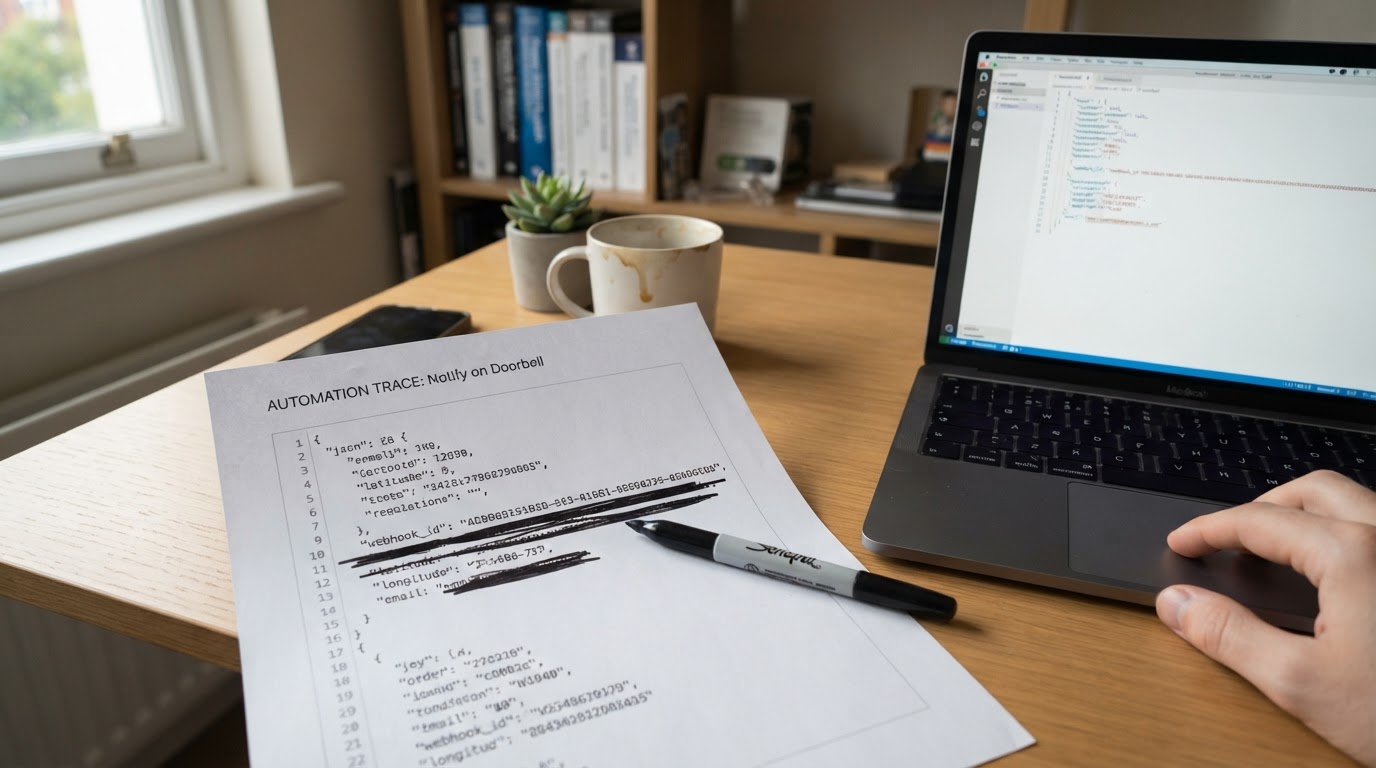
The same documentation gives two replacement rules, and they exist for different reasons. Replace private text with a placeholder such as REDACTED, keeping the surrounding quotation marks, because the quotes are JSON syntax and a value with the quotes stripped stops being a string. Replace private numbers, such as coordinates, with a numeric placeholder such as 0, because coordinates are numbers in the file. Keep the rest of the structure unchanged.
A trimmed, fictional example shows the two kinds of value. It is an illustration, not a real trace and not the complete trace schema:
{
  "trigger": { "platform": "webhook", "webhook_id": "6f1c8a72d4" },
  "variables": { "message": "Front door opened at 07:42 for Person A" },
  "latitude": 51.5074,
  "longitude": -0.1278
}
{
"trigger": { "platform": "webhook", "webhook_id": "REDACTED" },
"variables": { "message": "REDACTED" },
"latitude": 0,
"longitude": 0
}Names need a replacement of their own rather than a pass. Swap every private name for the same neutral label each time it appears, so Person A, Phone A or Front Door Sensor keeps the relationships readable across the configuration, the variables and the messages. That includes names inside service targets and notification recipients. If the automation's own title uses a household name, edit that string too instead of leaving it as the one exception.
Expect the same value in more than one shape. A webhook ID can appear in the trigger configuration and in the request data that started the run, and a phone number can appear in the notification target and again in the message text. After editing, repeat each search and confirm that only placeholders come back.
Check the copy before it leaves your machine
Parse the copy locally before you share it. Your editor's JSON mode, or a local tool such as python -m json.tool or jq, will tell you whether the file still parses. Do not upload an unredacted trace to a website that offers to validate or format JSON, since that upload moves the private file onto someone else's server before you have checked it.
A successful parse also answers a narrower question than it looks. REDACTED and 0 are perfectly valid values, so a file that parses can still contain the phone number you missed in a template. Reread the saved copy once more with the searches above, including the related activity and notification text, and treat the parse as a syntax check only.
The documentation adds one instruction that file editing cannot satisfy: if you have already shared a password or a webhook ID, change it. A redacted copy does not make an already published value private again, so rotate it where it is defined and share the edited trace afterwards.
Why the trace you need may already be gone
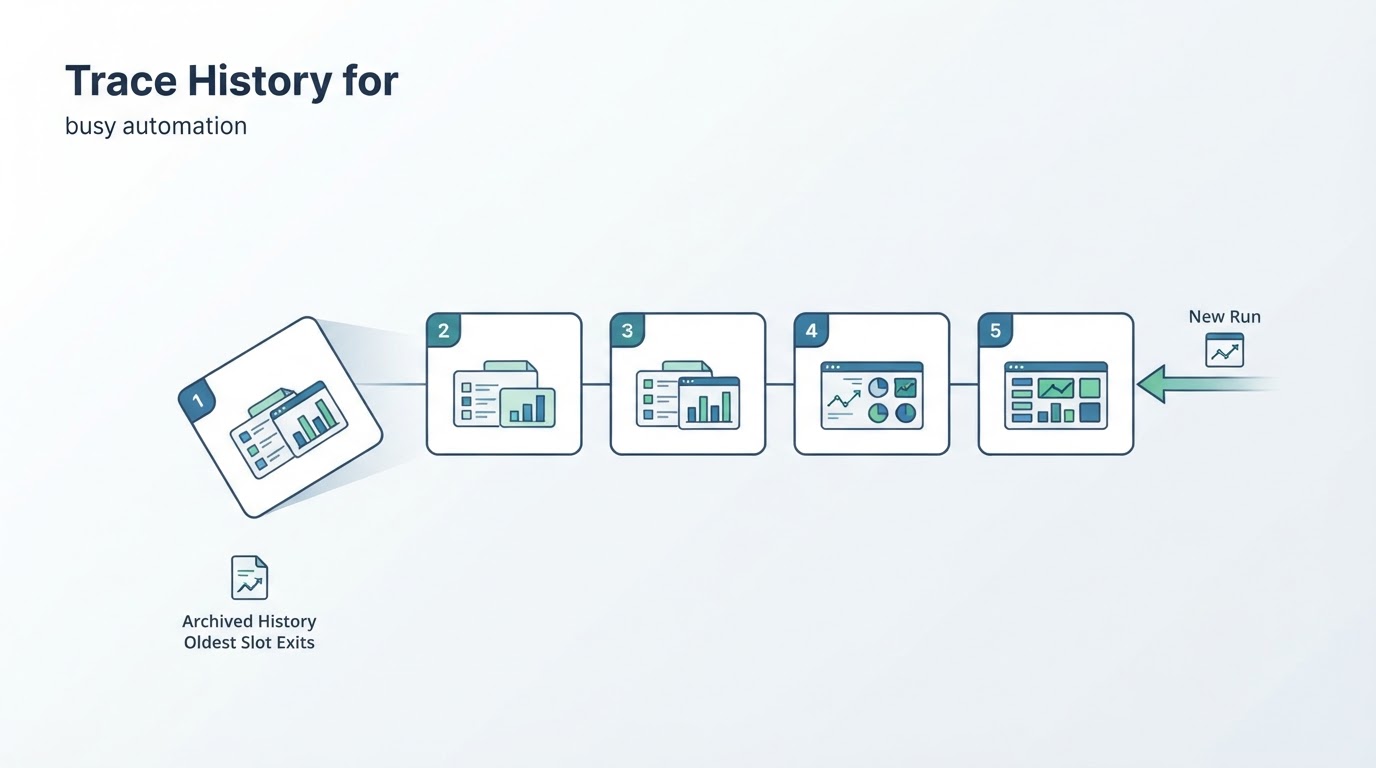
Home Assistant keeps the last five traces of each automation. Some triggers also record a trace when they notice a relevant change without starting the automation; those are marked Did not trigger and stored separately, so they never replace the traces of real runs. Every real run uses up one of the five slots, including a run that stops immediately because a condition failed or because the automation was already running in Single mode, so a busy automation can push out the run you wanted between two of your own attempts.
Traces survive a normal restart, because Home Assistant saves them when it stops and loads them again on start, but an unexpected stop such as a power cut loses the traces since the last restart. A YAML automation also needs an id before its traces appear at all. Adding the trace option with stored_traces through Menu and then Edit in YAML raises the limit for future runs only, and keeps the same number of Did not trigger traces alongside them.
If the run you are chasing involved a pause and you want to know whether a mode or a cancelled run dropped it, that is a separate question answered in the guide to Home Assistant automation delay and run traces.
What to send with the file
Post the edited JSON with a short description: what you expected, what actually happened, roughly when the run took place, and which step looks wrong to you. The trace already contains the automation configuration, the variables and the related activity, so you do not need to paste the YAML as well; whoever reads the file can see the exact conditions, templates and values involved.
Keeping the untouched download beside it also means you can answer a follow-up about a block you replaced, without reproducing the problem on a live system.