What the skip condition changes in YAML
automation.trigger runs the actions of an automation right away, without waiting for its triggers. The official Trigger automation page names two jobs for it: testing an automation, and reusing one automation from another.
By default the automation-level conditions are skipped. The action sequence is invoked under its normal run-mode rules; an inline condition, action error or cancellation can still stop it. The YAML reference lists a single option for that behavior: skip_condition, a boolean with a documented default of true. Set it to false and the automation checks its conditions before the actions begin. The snippet below is a documentation example aimed at automation.example, not output from a live installation.
action: automation.trigger
target:
  entity_id: automation.example
data:
  skip_condition: false
In the visual editor the same switch is called Skip conditions, and it is on by default inside the Trigger automation action. The documented field is singular: one flag covers the automation's condition block, however many conditions that block holds.
Two properties of the action change how a test result should be read. A target can be an entity, a device, an area, a floor or a label, and Home Assistant runs every matching automation behind that target, so an area target can start more automations than the one you had in mind. And the run happens even when the automation is turned off.
Running an automation is not enabling it
The action page lists automation.turn_on and automation.turn_off as related actions, with enabling and disabling an automation as their respective jobs. automation.trigger does something different: it executes the action list once, on request.
Because a turned-off automation still runs when triggered this way, a successful manual run does not tell you whether the automation is currently enabled. When the real question is why nothing happened last night, check the enabled state and the trigger configuration, and use the manual run only for the action list.
What the trigger variable holds during a manual run
The trigger variable exists, but it has nothing to work with. The action page puts it this way: the trigger variable is set, but it does not contain an id or any other trigger data, and templates that read values such as trigger.id or trigger.to_state.state get no value, or fail with an error.
The testing documentation repeats the consequence for a manual trigger from the Actions tool: a Triggered by condition is never met, and a template that uses trigger data has nothing to read.
That explains a common surprise. A Choose block with one option guarded by a Triggered by condition cannot take that option on a manual run, because the condition has no trigger to match. A template that compares trigger.to_state with trigger.from_state has nothing to compare. The actions may reach the end of the sequence and still produce a result that looks nothing like the automation's normal behavior.

The conditions inside the action list still run
The skip condition covers the automation's own condition block. Condition steps placed inside the action sequence follow different rules, and the testing page states them for both manual paths.
For Run actions in the editor: the actions run in order, as if the automation was triggered and all its conditions were met, and conditions within the actions still apply, so a condition step can stop the actions that follow it.
For Run actions, the trace shows automation-level conditions as skipped. A manual automation.trigger call with skip_condition: false instead evaluates that block. Condition steps inside the action sequence still apply in either case.
So skip_condition: false restores one layer of checking. It does not put the action sequence into a no-condition mode, and it does not remove the condition steps you wrote between actions.
Four ways to start an automation by hand
What you start | Automation conditions | Trigger variable | Use it when |
|---|---|---|---|
Run actions in the editor | Skipped | No trigger data | You want the action sequence on its own |
| Skipped | No trigger data | You want to invoke the sequence without its automation-level conditions |
| Evaluated first | No trigger data | You want to know whether the conditions allow the actions today |
Simulated trigger from Tools | Evaluated | Real trigger data, including the trigger ID | A condition or an action depends on which trigger started the run |
The middle two rows are the same action with the flag flipped, which is why that flag is the first thing to check when a manual run behaves differently from what you expected.
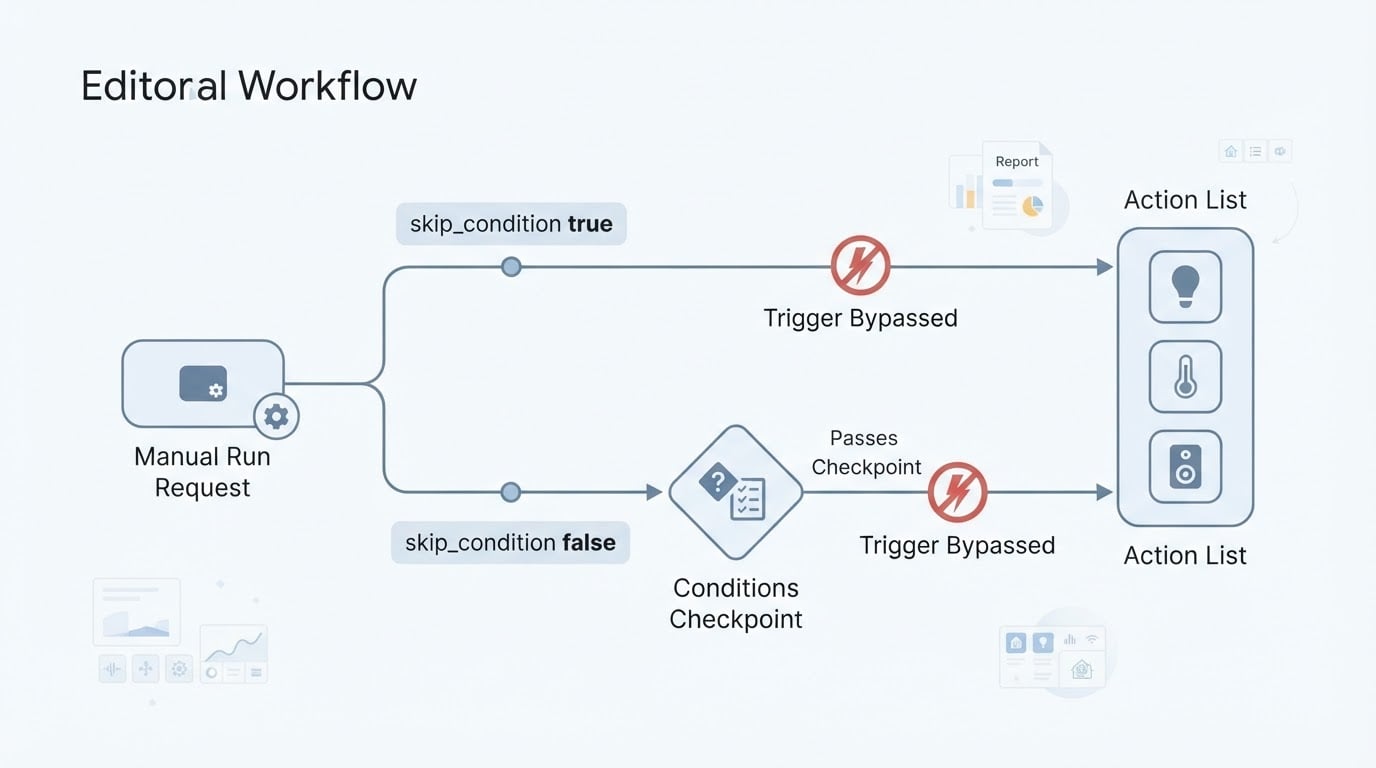
The Actions tool path in the testing documentation is this same action: select Trigger automation, add the automation as a target, turn off Skip conditions to check them, and select Perform action. Turning the toggle off there is the UI equivalent of skip_condition: false.
When a manual run cannot answer the question
Anything that depends on trigger data needs a run that has trigger data. The testing page points to a simulated trigger for those cases: you cause the state change or fire the event that the trigger reacts to, and the automation runs from the start with real trigger data, including the trigger ID.
Two boundaries come with that advice. Simulated state changes and events work for triggers that react to them, such as State changed, Numeric state crossed threshold and Manual event received. For a time trigger or an MQTT trigger, the documented alternative is to cause the real thing, for example by publishing the MQTT message.
The second boundary is safety. Simulating a state change starts every automation with a trigger that reacts to it, and those automations control real devices. The documentation asks you to review which automations react and to turn off the ones you do not want to run before you continue.
A completion check before you trust the result
A manual run is finished, and trustworthy for what it covers, when these checks pass:
- You decided whether the test covers the condition block, the action sequence or the trigger, and started the run that matches that question.
- If the condition block is part of the question,
skip_conditionwas set tofalse, and the run behaved the way the conditions said it should. - The trace for that run shows the steps you expected reaching the end you expected, or stopping exactly where a condition or a failed action stopped them.
- Anything that reads trigger data was tested separately, with a real device change or a simulated trigger.
- You did not count the manual run as evidence that the natural trigger fires; that question needs the trigger path.
The trace is the part people skip. Home Assistant records one for every run, and the trace list shows how each run ended, for example Stopped because a condition failed. A manual run that ends there is telling you the condition was evaluated and did not pass, which answers a condition question and says nothing about the trigger.
If the automation you are testing also contains a delay, the run has a second thing that can go wrong: a reload, a restart or a retrigger under the wrong mode can end the sequence before the delay finishes. Our guide to Home Assistant automation delay and traces covers the mode settings and how to compare a run that worked with one that did not.
A successful manual run with skip_condition: false shows the conditions passed at that moment. Conditions may differ when the natural event occurs. Check enabled state and event matching, then compare the natural run's trace and conditions at that event; the manual result cannot replace that evidence.