Check How Many Devices Are Affected
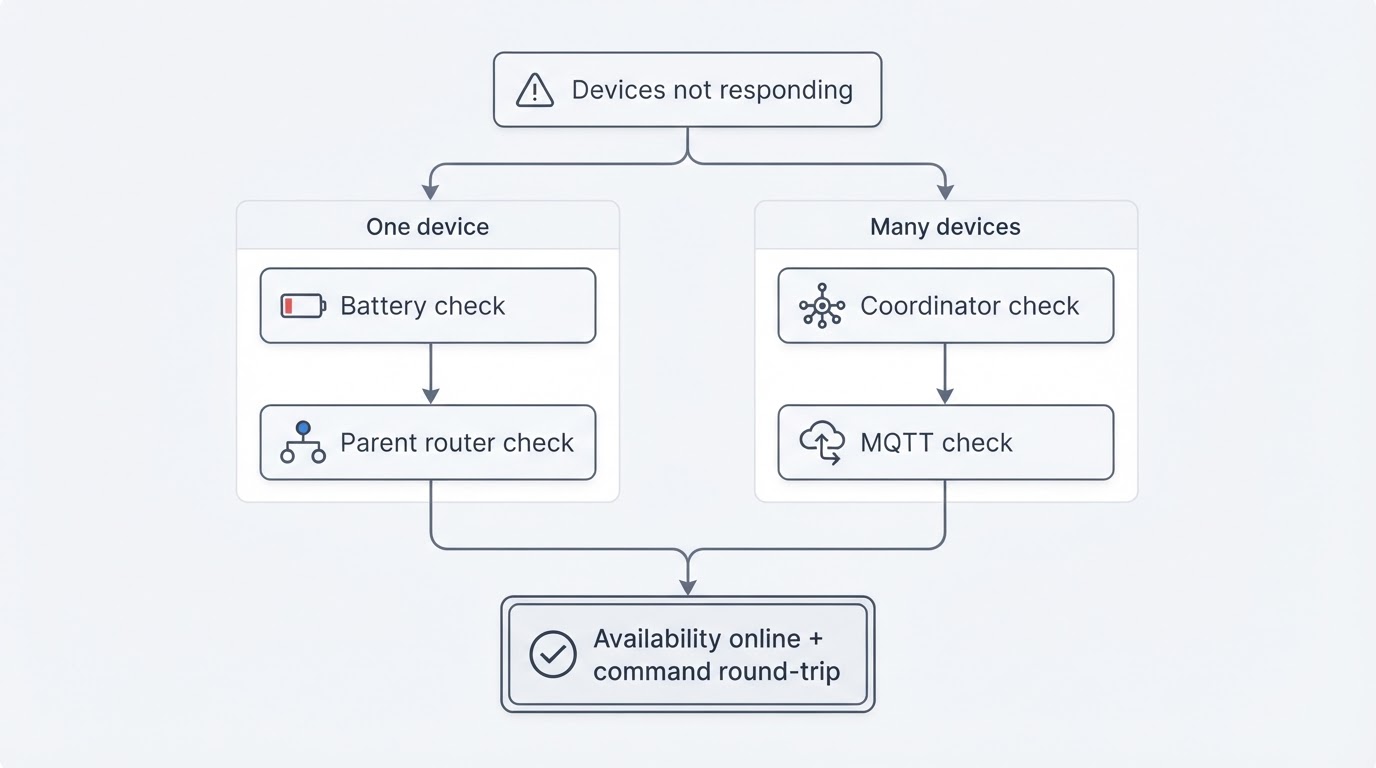
"Not responding" is a symptom, not a diagnosis. The first branch is simple: is one device silent, or did several devices go quiet at the same time? One device points to that device, its battery and its parent router. Several devices point to the coordinator, the MQTT connection or routing in the mesh. This is the opposite of a startup failure: if the Zigbee2MQTT service itself refuses to start, that is a different problem with a different log, so stop and fix that first.
Work the branch before you touch anything. Re-pairing a device changes routes and can disrupt working neighbours (Zigbee2MQTT troubleshooting guide). If the service itself does not start, use our separate Zigbee2MQTT startup guide.
What you see | Check first | What it narrows down |
|---|---|---|
One device offline, neighbours fine | Availability check-in window, battery, parent router | The device, its battery or its route |
Several devices offline in one area | The nearest mains-powered router | A router that moved, died or was removed |
Mains devices offline right after a restart | Availability timeout | Normal behaviour until the next check-in |
Everything dropped after moving a router or the coordinator | Route rebuild | Wait and watch, do not re-pair |
Devices work in Zigbee2MQTT but not in Home Assistant | MQTT broker and base topic | Transport, not radio |
Network was stable until you added USB 3, an SSD or HDMI gear | 2.4 GHz interference | Placement and channel planning |
One Device: Battery, Sleep Window and Parent Router
Zigbee2MQTT's availability feature separates active (mains-powered) devices from passive (battery-powered) ones, because passive devices cannot be pinged. Active devices must check in every 10 minutes by default; passive devices get 25 hours. A check-in is any Zigbee message that reaches Zigbee2MQTT, even an internal update that is never shown in Home Assistant (Device Availability).
That difference explains most "one sensor died" reports. A battery sensor that reports rarely can look offline while it is still working. Replace the battery only after you check the device page and the service log for recent messages, and wake the device (often a button press) so it checks in. If its reporting interval is longer than the default window, raise that device's availability timeout instead of re-pairing it.
Battery devices also do not route: they talk through one parent, either the coordinator or a router. If the router they depended on was unplugged, moved or removed, the device can stay unreachable until it finds another parent. Restore power to an accidentally unplugged router, then give the mesh time before deciding the device itself is faulty; do not reset several working routers at once.
Many Devices: Coordinator, MQTT and the Restart Trap
If several devices went offline at once, look at the coordinator and the MQTT connection before you look at the devices.
The restart trap catches most people. Availability timeouts are persisted between Zigbee2MQTT restarts, so after the service has been stopped for more than 10 minutes, mains-powered devices are marked offline until they check in again. Nothing is broken; the state is stale. Wait for the next check-in, then test one device with a manual command.
Next, verify the transport. Availability is published as a retained MQTT message to zigbee2mqtt/[FRIENDLY_NAME]/availability with a state of online or offline. If the broker is unreachable, the base topic changed or the retained messages are missing, every device can look dead at once even though the Zigbee network is healthy. On larger networks, an MQTT v5 broker with a packet-size limit can disconnect Zigbee2MQTT; that is a broker configuration issue, not a Zigbee one (Troubleshooting).
One more network-wide suspect is worth checking: availability pings are load. On older CC2530 or CC2531 adapters, that load can be enough to cause trouble, and a longer active timeout means less pinging. If devices drop whenever the network is busy, treat the adapter as the suspect rather than each device.
Routers, Interference and Channel Changes
Zigbee is a mesh: almost all mains-powered devices route for their neighbours, although relays without a neutral wire usually do not, and some cheap models route badly. If a whole area went offline, ask whether a router moved, was unplugged or stopped working. A router power cycle followed by patience fixes more of these cases than re-pairing.
You can see what the network believes with a network map. Send an MQTT request to zigbee2mqtt/bridge/request/networkmap to retrieve the topology and routes, then check whether the affected device still has a plausible parent instead of guessing.
Interference is the other network-wide suspect. Zigbee and Wi-Fi share the 2.4 GHz band, and USB 3 ports, SSDs, HDMI cables, Bluetooth and wireless audio all add noise. The official guidance is blunt: put a USB coordinator on a 50 cm USB extension cable, keep it away from the server, an SSD and the Wi-Fi router, prefer a USB 2 port, and try different orientations while watching linkquality values (Improve network range and stability).
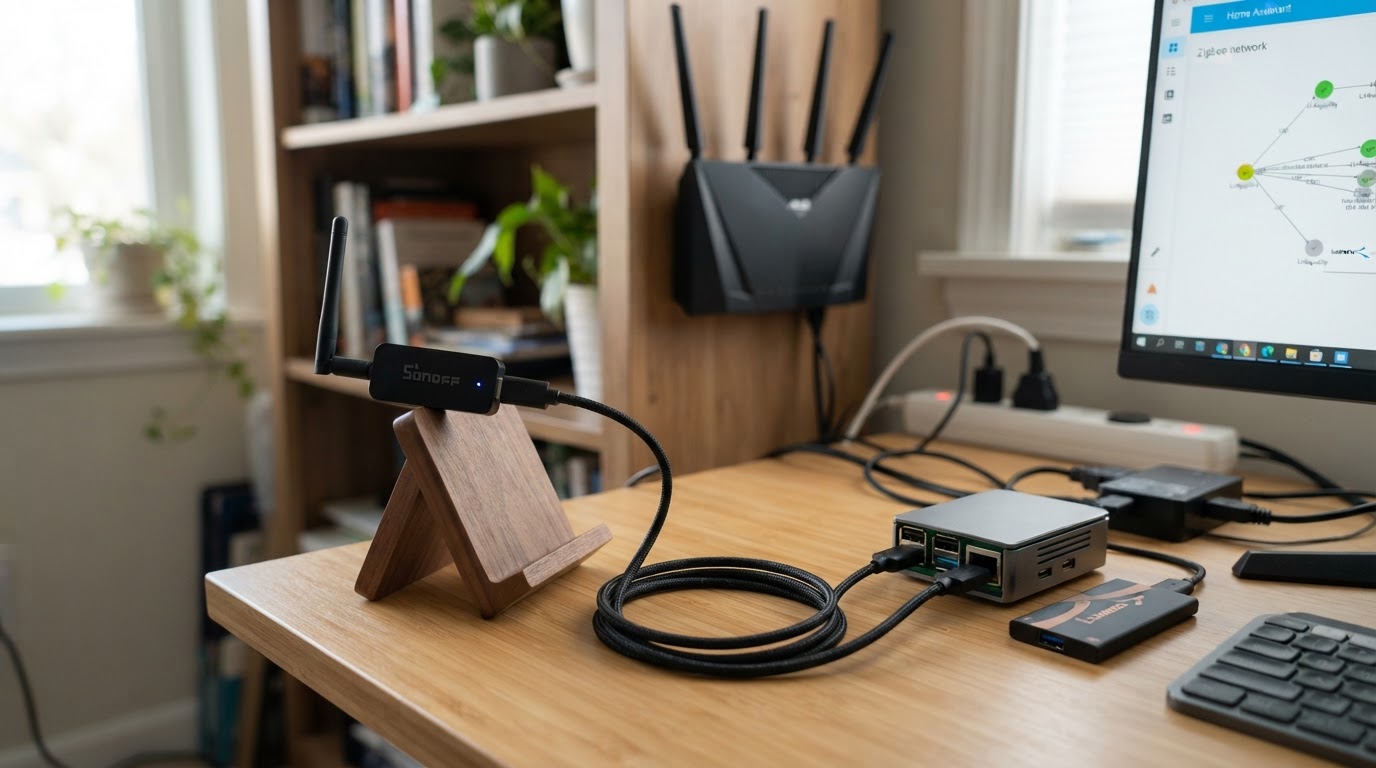
Changing the Zigbee channel is not a per-device fix. It is a network-wide setting that might require re-pairing some devices, so exhaust the free checks first: adapter placement, router health and the network map.
What Done Looks Like
A finished check is observable: the availability topic for each affected device reports online, and a manual command from Home Assistant round-trips. If the topic stays offline after the expected check-in window, you have a specific branch to follow: device and parent router for one device, coordinator and MQTT for many. Record which change moved the state. That record is your evidence for the next step, and it keeps you from re-pairing by trial and error.
Limitations and When Re-Pairing Is the Right Move
These checks have limits. Availability proves only that a device has not sent any message within its window; it does not prove the radio link is good or that the device is healthy. A network map shows what the mesh reports, not the radio conditions inside a wall. If you cannot see the cause, observe the network instead of churning it.
Re-pairing is the last move, not the first. Some operations, including moving, removing or re-pairing a router and migrating the coordinator, temporarily disrupt routing, so devices can respond slowly or not at all until routes settle. Good networks recover in minutes; others take a few hours. The right action is to stop changing things and let the network settle (Troubleshooting).
When you do re-pair, treat it as a real change: remove the device, then join it again near the coordinator or a known-good router. It is not a harmless reset, and it can leave other devices needing a moment to find their routes again. Never weaken security to force a device back either. Do not disable network keys, leave permit-join running, or expose your MQTT broker just to make a device answer.
FAQ
Why do mains-powered devices show offline right after I restart Zigbee2MQTT?
Because the availability timeout is persisted. After a stop longer than 10 minutes, active devices are marked offline until they check in again. Wait for the check-in and test one command before you troubleshoot anything else.
Should I change the Zigbee channel to fix one unresponsive device?
Only after the placement and router checks. The channel is a network-wide setting, and changing it might require re-pairing some devices. For one silent device, start with the battery, the parent router and the check-in window.
How long should I wait after moving a router or the coordinator?
Minutes for a healthy network, up to a few hours otherwise. Further operations during that window disrupt routing again, so check the network map and wait instead of re-pairing immediately.
How This Guide Was Put Together
This guide follows the official Zigbee2MQTT documentation and gives checks readers can verify in their own installations. It does not claim that these steps were tested on this site's specific hardware or network.