What restore saves, and what it never saves
A timer is its own entity, separate from the automation that reacts to it, and Restore is a property of that timer. In YAML it defaults to false. With restore: true, the Timer integration keeps active and paused timers across a start or restart. A timer can be active, paused or idle, and idle also describes one that was never started.
The arithmetic of an active timer is where expectations usually go wrong. Its saved state carries the deadline, so the clock keeps running while Home Assistant does not. Shut down with 3:00 left, stay down for 90 seconds, and the restored timer has roughly 1:30 left: less than before the restart, and less than the full duration you would see after a fresh start. If the deadline passes while the server is off, there is nothing left to restore, and the timer comes back idle. That arithmetic matches the versioned 2026.10.2 timer implementation, where a restored active timer subtracts the current UTC time from the saved finishes_at value; the check here is of published code and documentation, not a live test on this installation.
A paused timer is different. It returns paused with the remaining time it had when it was paused, and it stays paused. Restore does not resume it for you.
The same documentation page lists a second limitation, and it matters more than the state itself: automations using the timer.finished event will not trigger on startup when the timer expires while Home Assistant is not running. That is a statement about the listening automation, and it is worth keeping separate from what the timer itself does at startup. A reading of the published 2026.10.2 code shows that the expired branch of the restore routine resets the timer through its finish path, which fires timer.finished during startup. The practical boundary is therefore whether your notification or action actually runs, not whether an event exists. A laundry timer can look perfectly healthy after a reboot while the "washer is done" notification never arrives.
Turn on Restore for a timer helper in the UI
The helper route is the shortest, and the documentation treats the UI as the preferred way to create a timer.
- Open Settings > Devices & services > Helpers.
- Select Create helper, then Timer.
- Give it a name and a starting duration, for example five minutes for a laundry reminder.
- Turn on Restore and save.
- Note the helper's actual entity ID, such as
timer.laundry. That exact ID is what your automations need to target.
To change an existing helper, open it from the Helpers list, adjust Restore, and save. The option is saved with the helper right away. What it governs is the state that comes back at the next startup, so enabling Restore and then observing it are two separate actions: check the saved setting first, and plan a deliberate restart when you want to test the behaviour. If a countdown was already lost before the option was enabled, saving it does not recreate that countdown.
If you removed default_config: from configuration.yaml, add timer: before the UI can create timers at all. That is worth checking before you conclude the Restore option is missing.
Or set it in configuration.yaml
The YAML equivalent is small. The important part is placement: every timer lives under one timer: key, and restore: true sits inside the timer's own block.
timer:
  laundry:
    name: Laundry
    duration: "00:05:00"
    restore: true
duration accepts a number of seconds or the 00:00:00 form shown above. Adding a second helper means another entry under the same timer: key, not a second timer: block:
timer:
  laundry:
    duration: "00:05:00"
    restore: true
  bathroom_fan:
    duration: "00:20:00"
    restore: true
A UI helper and a YAML entry can end up with similar names without literally competing for one entity: Home Assistant can append a numeric suffix, so a second "Laundry" timer may appear as timer.laundry_2. The real risk is accidentally controlling two different helpers. Decide which definition is meant to own the task, read the actual entity ID on the helper page or under Developer tools > States, and check which one your automations, scripts and dashboard cards reference. Then edit that helper deliberately. Deleting the other definition is an option once you have confirmed nothing uses it, not the automatic first move.
The timer.reload action reloads timer definitions from YAML. It is not a simulated Home Assistant restart, so it does not exercise the startup path where restore happens. Before a deliberate restart, run Home Assistant's configuration check, so a YAML mistake is caught while the system is still up.
Three restart and expiry scenarios
Situation when Home Assistant stops | What the timer shows after startup | What the automation does |
|---|---|---|
Active, and the restart happens before the due time | Active again on the original deadline, so it has less time left than before the restart and less than a freshly started full-duration timer | Nothing yet. The countdown continues, and |
Paused at shutdown | Paused again with the remaining time it was saved with. It is not resumed automatically. | Nothing. A paused timer does not reach its due time until something starts it again. |
Due time passed while Home Assistant was off | Idle | Enabling Restore does not ensure a Timer finished automation runs after startup for a timer that expired during downtime. |
The table is the short version: restore protects the countdown and returns the timer to the right state, but it does not guarantee that a completion reaches your automation.
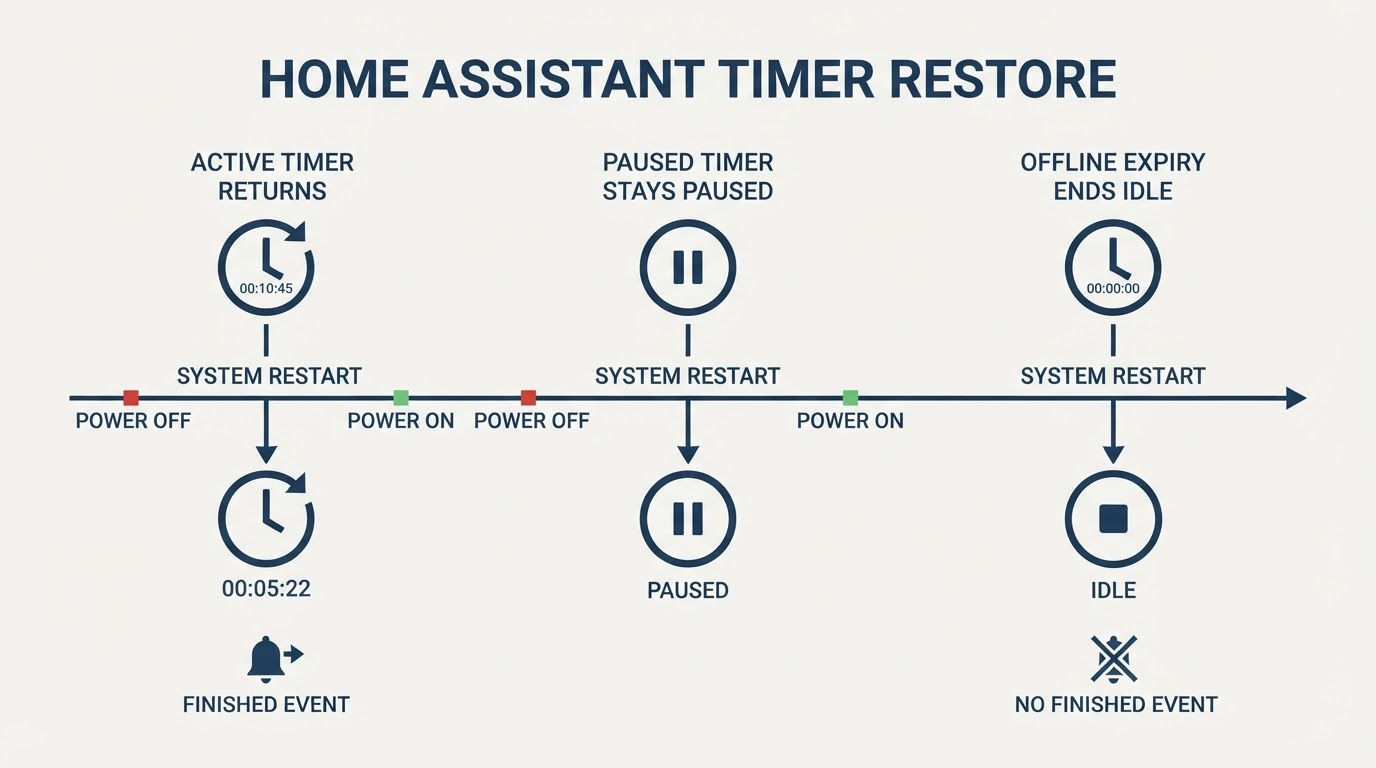
The third row needs a second look, because idle is ambiguous by design. A timer returns to idle when it finishes, when it is cancelled, or when it has not been started. "Idle after restart" therefore says nothing about whether the overdue work ran. The timer state alone cannot tell you whether a completion reached the automation.
A suggested check you can run yourself
This is a procedure to try on your own installation, not a result measured for this guide.
- Create a test helper with a short duration, five minutes is enough, and enable Restore. Confirm the entity ID you will watch.
- Start it, then record the wall-clock time, its state, its remaining time, and its due time if your dashboard shows it.
- Restart Home Assistant before the deadline. After startup, the same entity should be active with less time left than you recorded before the restart, and less than the full duration of a newly started timer. More remaining time than you recorded would not match a restore on the original deadline.
- Start it again, leave Home Assistant off past the due time, and restart. After startup, expect
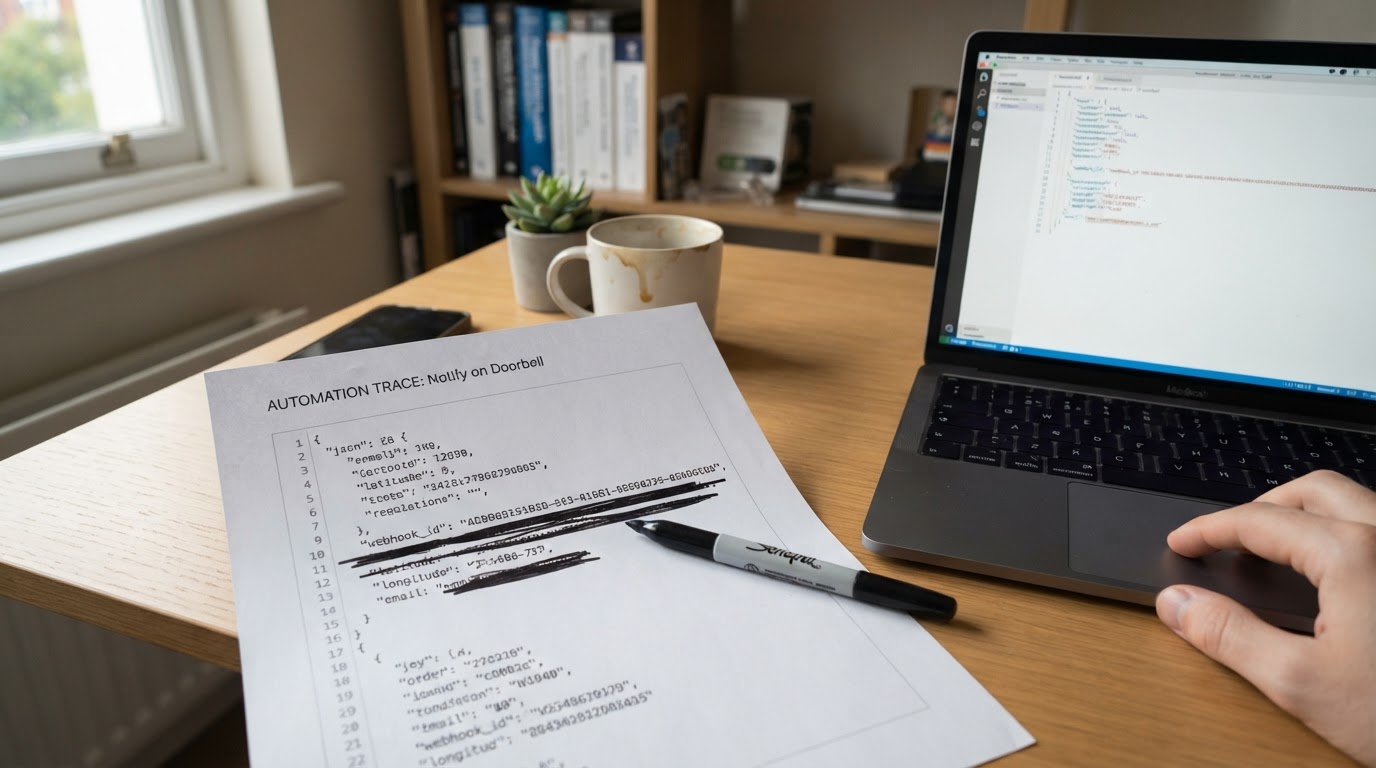
idle, then check the automation trace and the notification action's result. A missing message alone does not establish whether the automation ran or the timer emitted an event. - To watch the automation side, add a temporary notification automation triggered by Timer finished for that entity, and note whether a message arrives in each case. What you are checking is whether the automation runs after startup, not whether an event was emitted.
Record four things: when you restarted, the state and remaining time before, the state and remaining time after, and whether the notification automation ran. If the timer comes back with its full original duration, do not conclude immediately that Restore is off. Another automation or script may have called timer.start during startup, which resets the countdown and produces exactly that result. Check the automation traces before changing the configuration.
The catch-up boundary: what restore is not
If an overdue action has to happen even after downtime, restore is not the mechanism, and wrapping an idle check in another automation will not make it one. Nothing can run while the server is off, so a catch-up design has to save what was supposed to happen and reconcile it at the next startup.
The automation trigger documentation points at the building block for the saved deadline: write the desired time to an input_datetime helper and use it as a trigger when a wait must survive a restart. That is also why a for: option is not a substitute, because it does not survive a restart or an automation reload, and neither is a delay action, which belongs to the run that created it.
A conceptual design, not a tested turnkey automation:
- Store the intended due time in an
input_datetime, and keep the job's armed and completed state in helpers or another saved store. - On a Home Assistant start trigger, compare the current time with the stored due time.
- If the deadline has passed, the job was armed, and it is not marked complete, run the action.
- Then mark it complete.
The bookkeeping is where the guarantees stop. Home Assistant actions and helper writes are separate steps, not one atomic transaction. If the server stops between the action and the write, the next startup may see an unfinished job and act again; if it stops between the write and the action, the action can be skipped. The design does not establish a formal delivery guarantee in either direction, so make the action idempotent where the device allows it, or detect duplicates before acting, and keep the completion record as bookkeeping rather than a promise of exactly-once execution.
Late actions also need a decision that fits the installation. A reminder, a notification, or nothing at all may each be the right answer for a different setup, and a test notification is a useful first check before a startup routine is allowed to drive real equipment.
When Restore looks broken, check in this order
Start with the entity, then the setting, then the mechanism. Most "restore does not work" reports collapse into one of these checks.
- The right entity. A UI helper can gain a suffix such as
timer.laundry_2. Confirm the helper you edited is the entity your automation targets. - The setting is saved on that helper. In the UI, the helper's own Restore option; in YAML,
restore: trueinside that timer's block. An omitted line means the default, which is disabled. - One intended definition, referenced deliberately. Check the actual entity IDs before editing or removing anything, so a second similarly named helper is not left running the task by accident.
- Whether something restarts the timer. A full-looking duration after startup is not proof that Restore was off; another automation may have called
timer.start. - Startup, not reload.
timer.reloadreloads YAML definitions and is not a simulated restart, so it is not a restore test. - The automation side. Check that it triggers on Timer finished for that specific entity, that it is enabled, and that its trace shows what actually happened rather than what you expected.
- The expectation. A restored active timer should show less remaining time than before the restart. A full original duration points to a fresh start from somewhere: a helper restart, an automation, or a timer that was never running when the server stopped.
- The source and the version. Read documentation that matches your installed version. Older write-ups describe behaviour from older releases, so a single forum thread is weak evidence about yours.
Delays, interrupted runs, and what to read next
A delay action and a timer helper fail differently, and mixing them up sends you looking in the wrong place. A delay pauses one automation run, so a restart ends that run and the wait never resumes. A timer helper is an entity, so it can be restored, but restoring its state does not ensure that a Timer finished automation runs for a timer that expired during downtime. If what you are chasing is actions after a delay that never arrived, the guide to automation delays and interrupted runs covers the mode and trace checks for that case.
For the timer itself, the practical summary is narrow: enable Restore, confirm the entity and the saved setting, and restart deliberately, expecting a countdown that keeps its original deadline, not a guarantee that a missed completion reached your automation. When an overdue job genuinely has to be acted on, build it on a saved due time and an explicit startup check, and handle repeats as a normal possibility rather than a guaranteed non-event.