What multi-admin means in Home Assistant
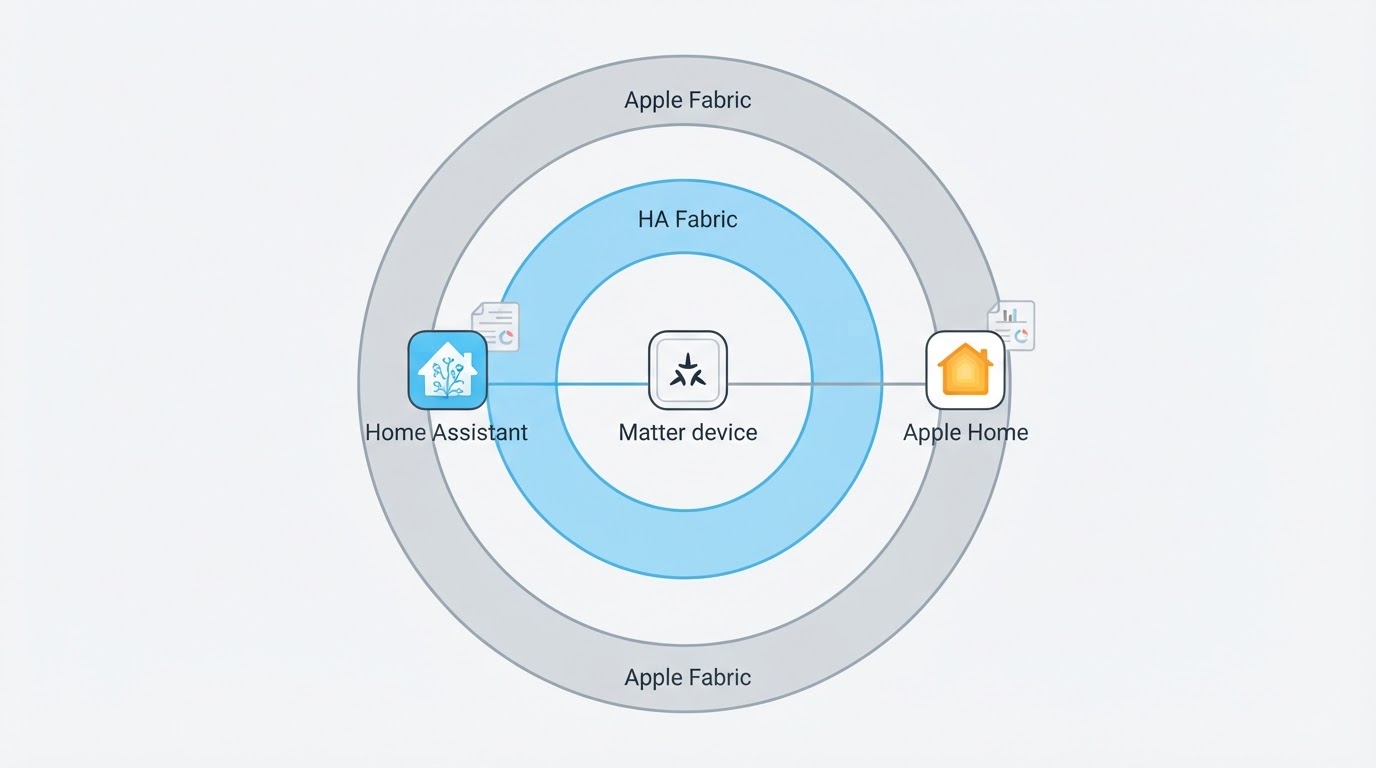
A Matter network is called a fabric, and every controller that manages Matter devices runs its own. Home Assistant is a Matter controller through the Matter Server app, so when you add a device that already works in Apple Home or Google Home, you are not moving it between systems. You commission it again into Home Assistant's fabric, and the original fabric stays where it is. That second commissioning is what multi-admin describes: each controller that joins keeps its own fabric, and a device can hold more than one at a time (Home Assistant Matter integration documentation). How many fabrics a particular model supports is device-specific, so check the manufacturer's specification if you are planning around three or four controllers.
Because both controllers address the same hardware, a command from either one changes the device itself. What does not travel is everything around it: the automation that sends the command, the dashboard, the name and area you gave the device in one app. Each controller keeps its own view of the same lock or bulb.
Before you start either direction
- The Matter integration is installed in Home Assistant and the Matter Server app is running. If you have only ever run Zigbee, this is a separate setup step under Settings > Devices & services.
- The Home Assistant Companion app on your phone is the current release, because both the add and share dialogs live there.
- The device is already commissioned and working in its original ecosystem.
- You can generate a fresh sharing code from the controller that currently owns the device.
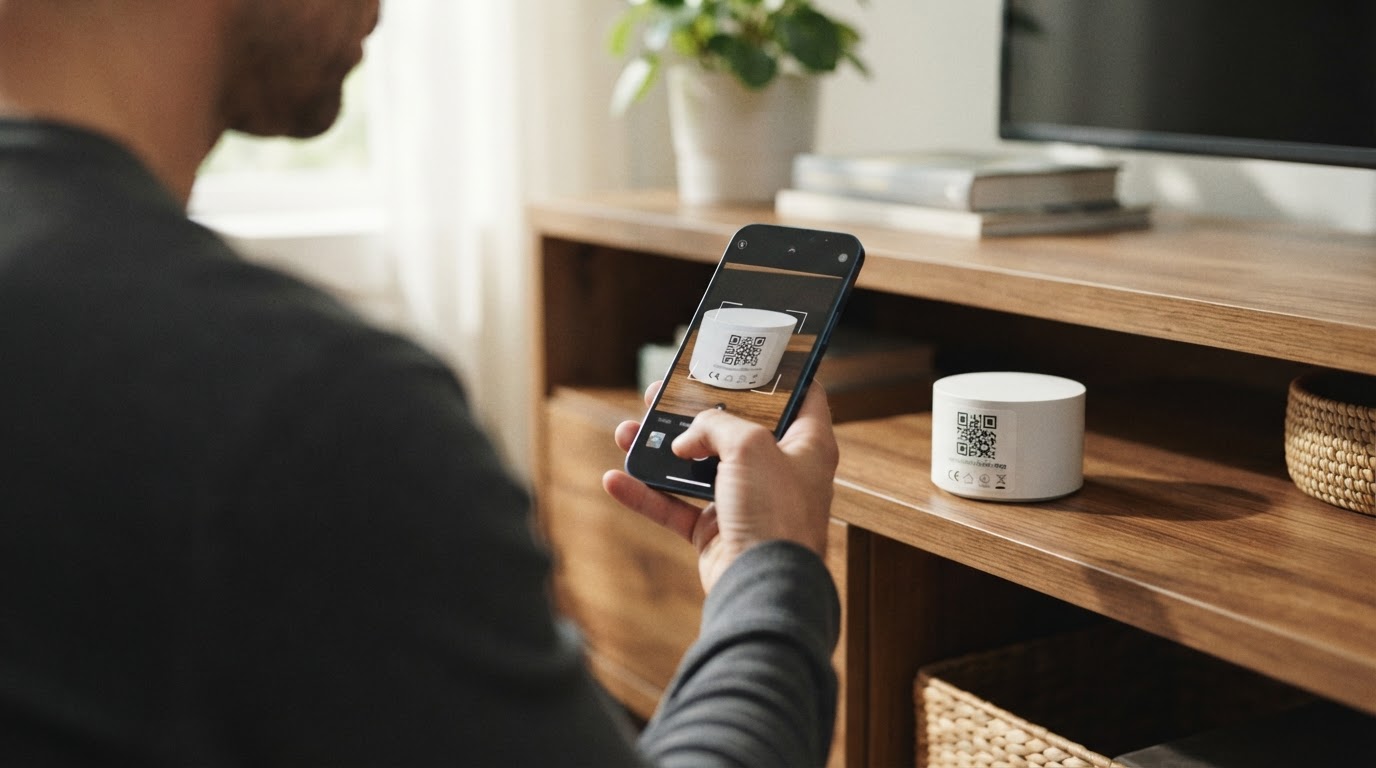
The factory QR label on the device is not the same thing as a sharing code. A fresh sharing code, generated by the owning controller, is what the normal flow uses to add the second controller. The printed setup code is worth photographing when you install a device, because a factory reset will demand it later; it is not a required input for sharing a device that is already commissioned.
Direction 1: bring an existing device into Home Assistant
This is the path for a device that already works in Apple Home or Google Home and you want Home Assistant to control as well.
- Open the Home Assistant Companion app on your phone.
- Go to Settings > Connectivity > Matter.
- Select Add device.
- In the dialog, select Yes. It's already in use., then choose the controller the device is already paired with, for example Google Home.
- Follow the prompts in the dialog, then finish the Device added flow by naming the device and picking an area.
This step is a commissioning flow in its own right, not a switch that flips an existing device over to Home Assistant. The device ends up with a Home Assistant fabric alongside the one it already had, which is why the owning controller's app is still needed during the process. If the dialog fails, check that the Matter integration is installed and that the Companion app is current before touching the device — the documentation names those two as the first things to verify. Labels move between app releases, so compare against the documentation for the release you have installed rather than an older screenshot.
Direction 2: share a Home Assistant device with another platform
This is the reverse trip: the device already lives in Home Assistant and you want it in Apple Home or Google Home too.
- Go to Settings > Connectivity > Matter and select Devices.
- Pick the device you want to share.
- Select Share device, then select Share device again in the dialog. No hardware button press is needed to put the device into commissioning mode for this flow.
- In the other platform's app, scan the new QR code or enter the sharing code.
- Follow that app's instructions.
Home Assistant then keeps a record of who joined. Next to Share device, open the three-dots menu and select Manage fabrics. The platform you just paired with appears in the list; a Google Home share is listed as Google LLC. Treat the fresh sharing code like a credential: whoever holds it can add the device while it is valid, so avoid leaving it on a shared screen or in a stored screenshot. Menu positions shift between releases, so work from the current documentation for the version you have installed.
Check the share before you try again
The device showing up in the second app is not by itself proof that sharing finished, and a device you cannot control from the new controller is not automatic proof that it failed either. Check three things first:
- Fabrics: open Manage fabrics and see whether the second controller is listed at all.
- Reachability: confirm the device is online and responding in its original app, and that the new controller still sees it after a reload.
- Permissions and roles: in ecosystems that assign controller roles, confirm the account you are using is allowed to control the device.
If the controller is missing from the fabric list, the share did not complete. If it is listed but commands do nothing, the cause may be the device's state, its network, or how the second app exposes it rather than the share itself.
When you do need another attempt, repeat the direction that matches the owner. Sharing out of Home Assistant only helps for a device Home Assistant owns; if the device is owned by Apple Home or Google Home and you want it in Home Assistant, Direction 1 is the flow to run. Generate a new sharing code for the retry instead of reusing the previous one.
When a factory reset is not the answer
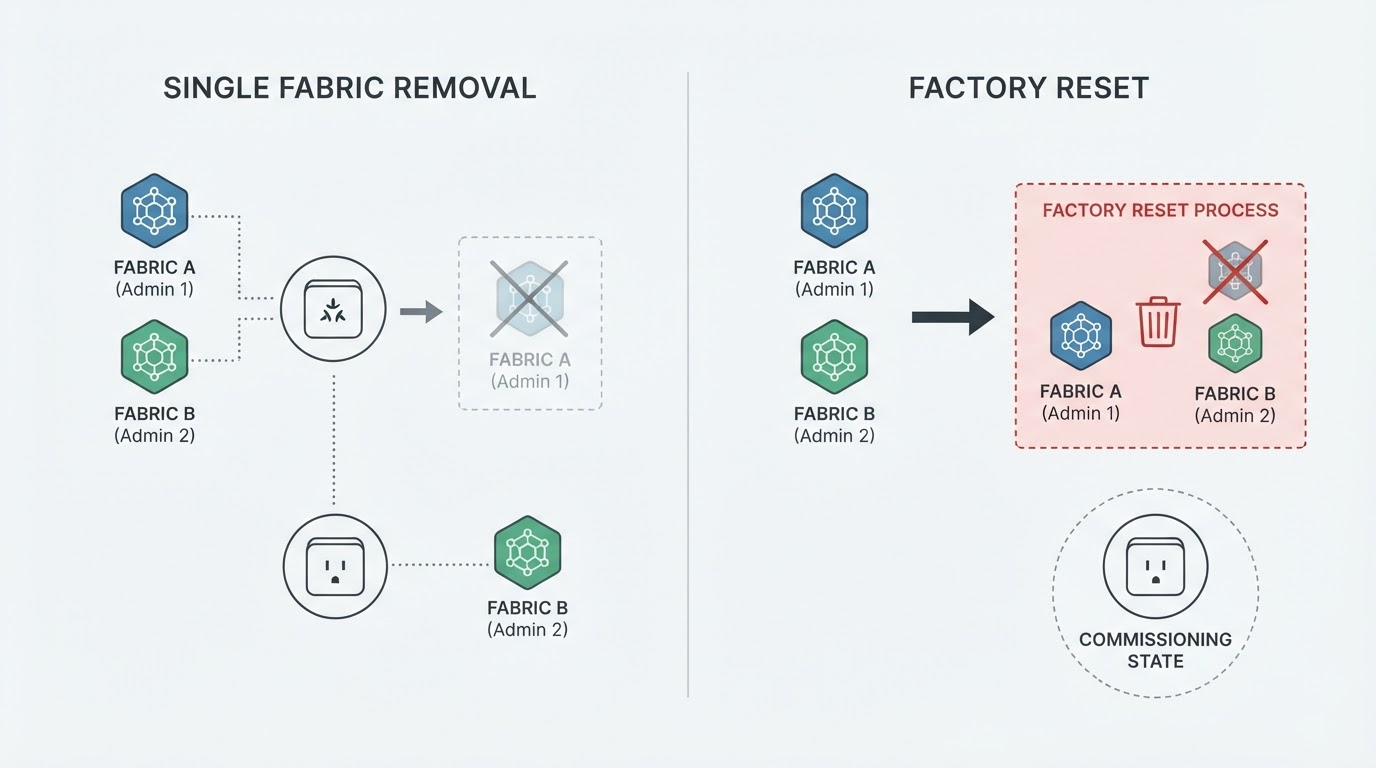
The normal supported sharing flow does not require a factory reset: the device stays commissioned the whole time, because you are adding a controller rather than starting over. Recovery is device-specific, though, and a device that will not clear a stale fabric may need the vendor's own procedure.
Removing one controller is the smaller operation. In Home Assistant, open the device, use the three-dots menu next to Share device, select Manage fabrics, and remove the controller you no longer want. If you remove Apple Home, also delete the Apple Keychain entry, or the leftover key keeps the device listed there. Deleting the device from Home Assistant itself is a third action — three-dots menu, then Delete — and it leaves the device in the other ecosystems untouched.
A factory reset clears the device's fabrics and returns it to commissioning, so each controller has to add it again. That is why it is the wrong first move for a sharing problem. Save it for a device you are handing on without inherited access, or one you cannot get into a workable state at all. The original setup code is needed again after a reset, which is why photographing the QR label at install is worth the minute.
What multi-admin does not do
Home Assistant is a Matter controller, not a Matter bridge. It controls Matter devices, and it cannot turn your existing Home Assistant entities into Matter devices for another ecosystem. If you want a non-Matter device visible in Apple Home, you need a product that provides a bridge; the sharing flow here does not do that job.
Automations stay where they were written. Sharing a device gives the other controller access to the device, not to the Home Assistant automation that drives it. Two controllers can each run their own logic against the same device, and two controllers issuing commands to one device can produce conflicting states. Decide which controller owns scheduled or safety-relevant actions before you rely on either.
Vendor-specific features can go missing. Matter carries a common set of capabilities, so a device that exposes scenes, dynamic effects or entertainment modes through its native integration may only offer basic control over Matter. The Home Assistant documentation uses Philips Hue as its example: the native Hue integration is richer than what Matter exposes.
If you are still deciding whether a new device belongs on Zigbee or Matter at all, the site's Zigbee vs Matter comparison covers that call. For this task the only relevant part is that Matter was designed with multi-controller fabrics from the start.