What Matter actually needs from IPv6
Home Assistant's Matter documentation states both halves of the answer in one place: IPv6 multicast traffic has to travel freely to the Home Assistant host, and an IPv6-enabled internet connection or a DHCPv6 server is not required to add Matter devices (Home Assistant Matter integration documentation).
Local IPv6 and an IPv6 internet connection share a protocol but not a job. Inside your LAN, IPv6 gives devices link-local addresses that work without any server and places them in multicast groups, which is how discovery messages reach every interested listener on the same network segment. Home Assistant lists link-local, unique-local and global-unicast addresses for a commissioned Matter device, and the first two are entirely a local matter. An IPv6 internet connection is a globally routable prefix delegated by your ISP, together with the WAN configuration that makes it usable. Matter discovery runs on the first kind.
That is why an IPv4-only WAN can coexist with working Matter. Local IPv6 can come from your router's LAN-side configuration rather than from the provider, which is consistent with the documentation not asking for a DHCPv6 server. If your router also hands out IPv6 from your ISP, nothing about that hurts; it simply is not the part the Matter integration depends on.
The setting that has to be on in Home Assistant
The IPv6 switch that matters lives on the Home Assistant host, not on the router. Go to Settings > System > Network and confirm that IPv6 is set to Automatic or to a static configuration that matches your network. The documentation's advice for the unsure case is short: use Automatic.
Our Matter introduction lists IPv6 networking among the things to have ready before you enable the integration. For this diagnostic task, that prerequisite resolves into two concrete items: an IPv6 stack running on the Home Assistant host, and a local multicast path that is not being filtered.
Where multicast and mDNS break
The documentation names mDNS explicitly. Matter relies on local IPv6 and mDNS multicast traffic traveling freely in your network, and mDNS is the mechanism that lets a controller find devices and border routers without you typing an IP address. It depends on multicast packets reaching every device on the link.
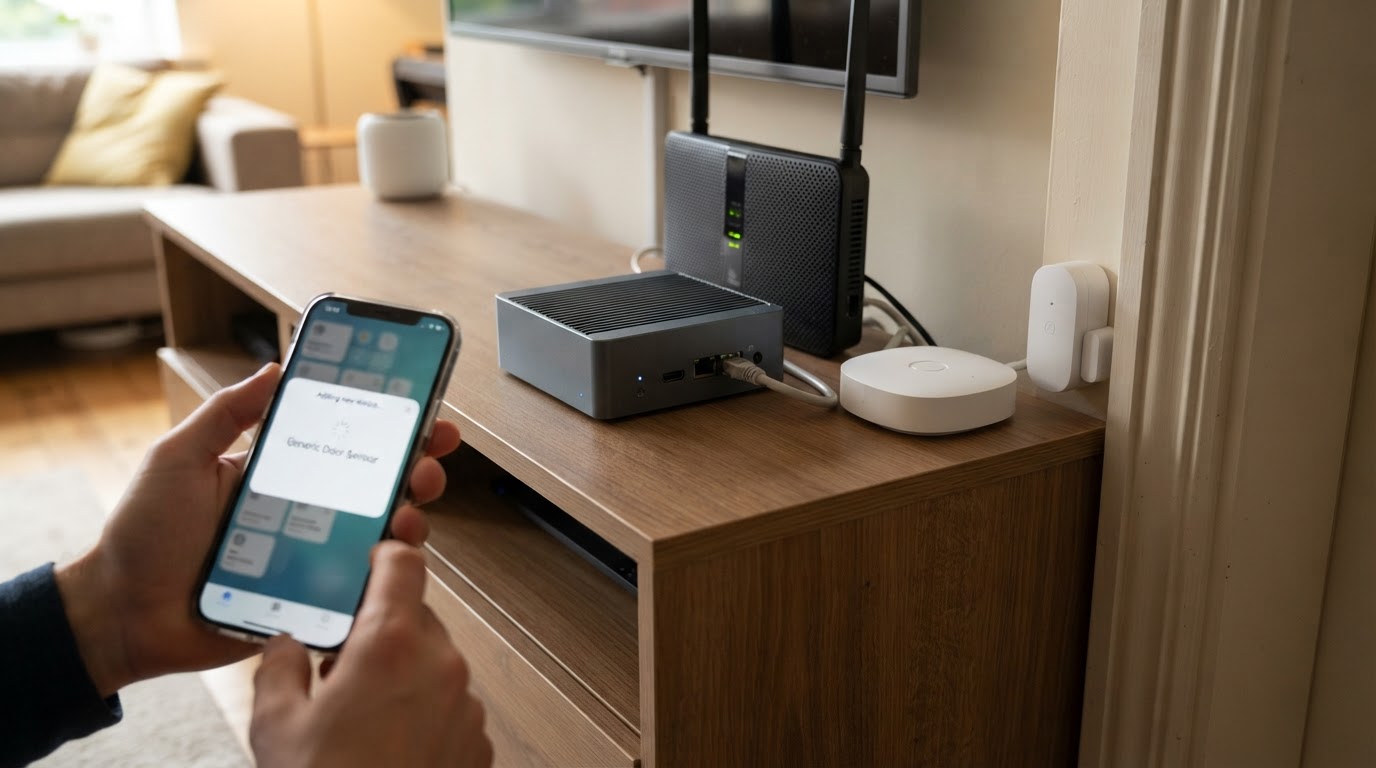
A network can pass a ping test and still fail here. Unicast traffic between two known addresses may work perfectly while multicast is dropped, filtered or handled by a router option described as traffic optimization. Failed commissioning, devices that are hard to discover, and devices that drop out at random are the symptoms Home Assistant lists for this kind of path problem.
VLANs, isolation and the arrangement the documentation expects
Home Assistant's documentation is candid about segmentation: Matter is designed for regular residential network setups and may not integrate well with enterprise networking features such as VLANs, multicast filtering and malfunctioning IGMP snooping.
The documented arrangement for a simple home is to keep Wi-Fi Matter devices, including Thread border routers, on the same VLAN or VLANs as Home Assistant, and to give Thread devices a Thread network with at least one Thread border router connected to the Home Assistant LAN. Keeping the topology as simple and flat as possible is part of the same advice. Treat that as the baseline the integration expects in a residential deployment, not as a reason to switch off protections you rely on. If your network is deliberately segmented, a guest network or an isolated IoT VLAN included, the practical question is whether local IPv6 and mDNS multicast can cross between those segments, not whether the firewall should be removed.
If you searched for a Home Assistant Matter router, the phrase usually maps onto one of two roles: a Thread router, which forwards messages for other Thread devices, or a border router, which joins the Thread network to your LAN. Neither role is an IPv6 internet device, and neither replaces the local multicast path those devices need.
A check order for a device that will not commission
Work through these in order and stop at the first one that explains the symptom.
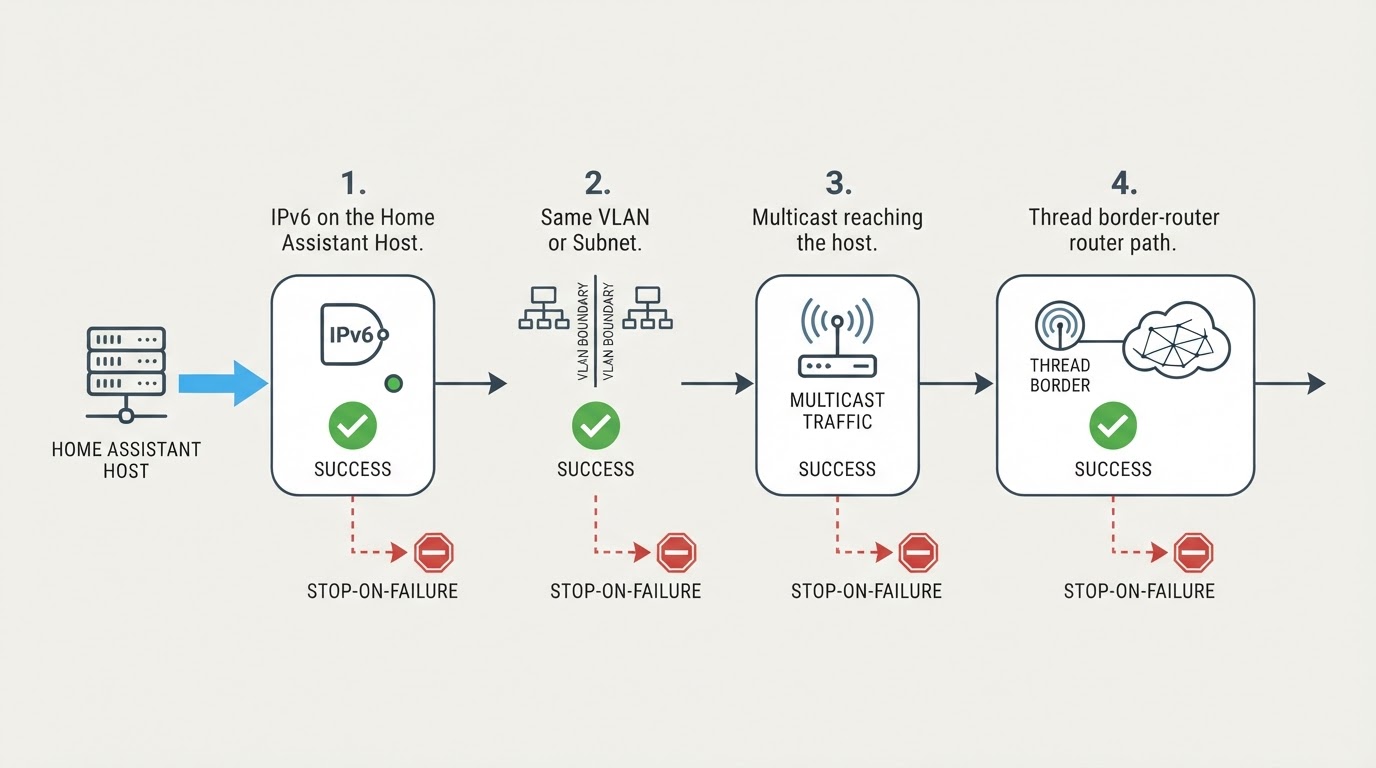
- IPv6 on the Home Assistant host. Open Settings > System > Network and confirm that IPv6 is set to Automatic or to a deliberate static configuration. If it is disabled or half-configured, correct that before changing anything else.
- One segment for the devices that matter. Confirm that Wi-Fi Matter devices and any Thread border router sit on the same VLAN or subnet as Home Assistant. If you keep them apart on purpose, check that your rules let local IPv6 and mDNS multicast pass between the two segments.
- Multicast reaching the host. Look for multicast filtering, unusual IGMP snooping or a router's multicast optimization setting on the path between the devices and the Home Assistant host.
- Thread only: the border-router path. If your devices are Thread-based, confirm that at least one border router is connected to the Home Assistant LAN.
The usable test is functional rather than diagnostic: a Wi-Fi Matter device is discovered, commissioned and controllable while your internet connection stays exactly as it was. None of these steps turns a single symptom into a diagnosis on its own. A host with IPv6 disabled, a device on another VLAN and a filtered multicast path can all look like "Matter is broken" from inside the app, and the order above is there to separate them.
When the network checks pass and commissioning still fails
At that point the documentation points at commissioning conditions rather than the WAN. It asks for a current Home Assistant release with the Matter integration installed. Thread-based devices need an appropriate Thread border router in the home network, while Wi-Fi Matter devices do not automatically need one, which is another reason to identify the device's transport before changing network settings.
If your installed Home Assistant release includes the Matter network map, it can show the border routers and Thread devices it knows about. Whether every Thread node appears there depends on the release you are running, so treat the map as a view of the topology rather than a condition the whole setup has to satisfy.
Only after those conditions check out does it make sense to treat the problem as specific to the device rather than to the network path it needs.